When you experience problems with your Home center module, the Home center support team may ask you to activate Remote support and provide the MAC address of the Home center module. This allows the support team to connect temporarily to your Home center module to investigate the issue.
Only activate Remote support when requested by the Home center support team
To activate Remote support:
- Log in to your Home center using the web interface or the Android app.
- Open Settings.
- In the web interface, open Advanced.
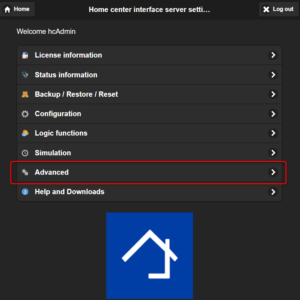
- Click on Activate Remote support:
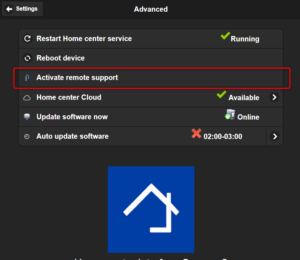
Remote support is now active. An indication on the screen confirms that the remote connection is enabled. The Home center support team can now connect to your module to check log files and internal system configuration.
Remote support is only active while the support team is connected. No further action is required from you.
What if Remote support cannot be activated?
If Remote support cannot be activated, check the following possible causes:
- The Home center module must have an active internet connection.
Remote support requires the Home center module to communicate with the Home center support servers. Check that your internet connection is working correctly. - The network connection of the Home center module may be interrupted.
Check that the network cable is properly connected (or that the Wi-Fi connection is active, if applicable) and that the Home center module is connected to your local network. - Firewall or router settings may block communication.
Your network firewall, router, or security software may prevent the Home center module from establishing the required connection. Make sure that outgoing communication from the Home center module is allowed. - Network restrictions may prevent internet access.
Some company or advanced home networks use additional security settings, such as network filtering, access control, or restricted internet access. These settings may need to be adjusted to allow the Home center module to connect. - The Home center module may need to be restarted.
Restart the Home center module and try activating Remote support again.
If it is not possible to connect to the module in any way, Home center support will inform you of a different manner to activate the remote support for a short time.
Find the MAC address of your Home center module
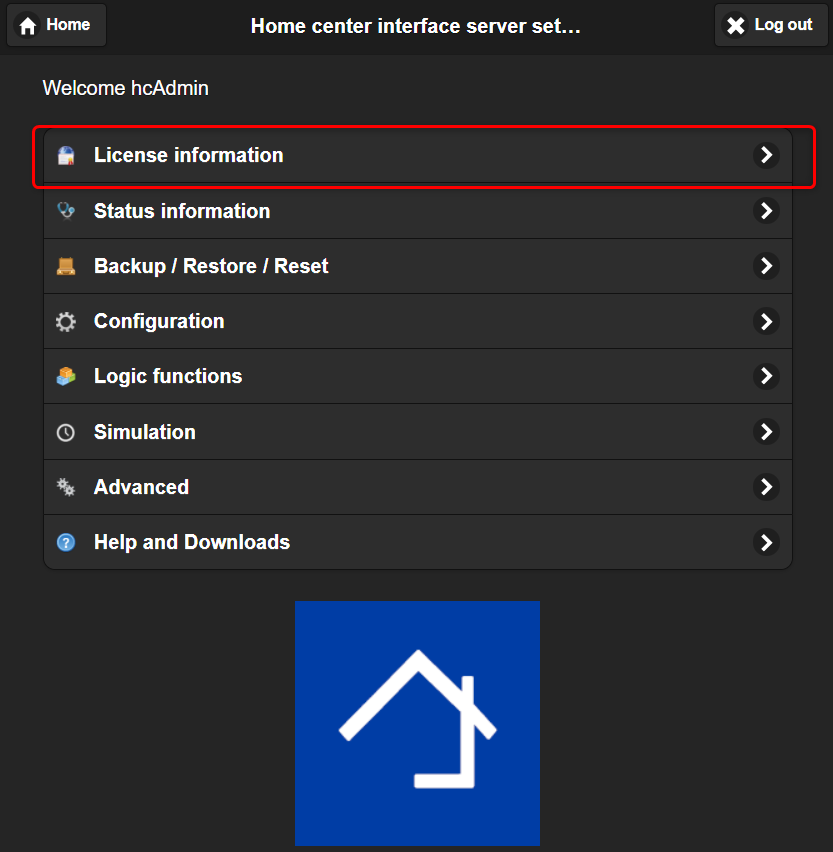
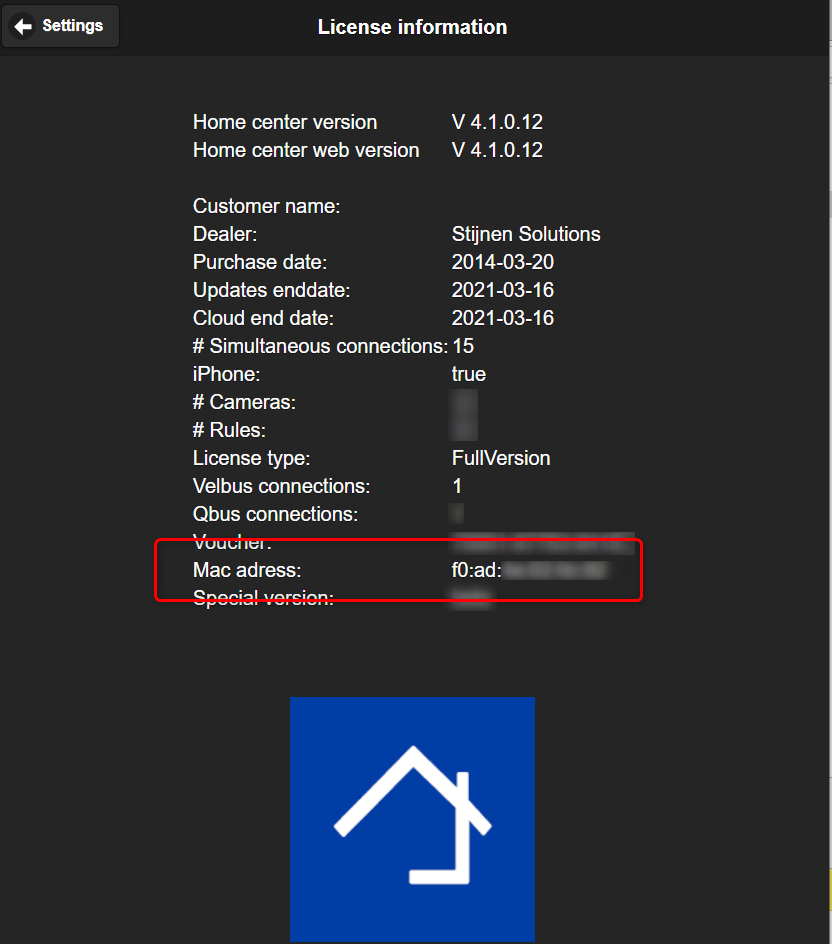
You can find the MAC address in the web interface:
Settings > License information
Alternative way to find the MAC address
You can also find the MAC address on the back of the Home center module.
- A white Home center module has a MAC address starting with f0:ad:…
- A DIN rail Home center module has a MAC address starting with b8:27:…