Is the module itself accessible?
In other words, can you surf to it and sign up?
- If not, start from step 1
- If you can but you can’t operate or there is no feedback, start from step 8
1. The module may not have completely started up after a restart or new connection
Wait 1 minute and try again.
2. Check the module itself: are the lights on?
- Do you have the white module?
There are 2 lights at the front. The exact color may be different, but they should both be burning. If this is not the case, disconnect the module for 30 seconds and then plug the cable back in. The module will restart. It should be accessible after about a minute.
- If only 1 light is on, the hardware is defective. The device is therefore no longer usable. This can no longer be repaired because the components will no longer be available from 2022.
Contact us for a proposal to upgrade to the new HISv2 module. As the owner of a VMBHIS license, you enjoy a discount. - If there are no lights on & the module is cold:
- Check that the plug itself is in order: use a different cable or replace the adapter with a cable:
- Check that there is power on the socket itself! If necessary, plug the module into a different socket. Note: if it starts up, do not pull it out immediately. This is a computer with fine electronics. Then wait at least 1 minute.
- If still not, the power supply will be defective. This can be repaired by replacing the power supply. However, this repair can no longer be carried out by us because we can no longer give a warranty on the devices because the hardware components are no longer available.
Necessary information to replace the power supply: it is a 5V 2A power supply. Please note: in addition to the power supply, other components may also be defective. In that case, the module can no longer be repaired.
Contact us for a proposal to upgrade to the new HISv2 module. As the owner of a VMBHIS license, you enjoy a discount.
Check if the lights on the network port are flickering. If this is not the case, the network connection must be checked:
- Is the cable still ok? Is it properly plugged in on both sides? Replace the cable.
- Is the connection to the router ok? Open the router’s webpage to see if the module is visible in the list of connected modules.
- Do you have the DIN RAIL module?
At the front, the light at the bottom left should be on constantly.
When bus-activity, the 2 lights next to it should also be on.
The 2 lights at the top should also be on/flickering.
If this is not the case, turn the module off the voltage for 30 seconds and then turn the voltage back on. The module will restart. It should be accessible after about a minute.
Check if the lights on the network port are flickering. If this is not the case, the network connection must be checked:
- Is the cable still ok? Is it properly plugged in on both sides? Replace the cable.
- Is the connection to the router ok? Open the router’s webpage to see if the module is visible in the list of connected modules.
There are also 2 switches under the glass panel: these must be in the position as shown in the photo (both downwards). The position of the switches is as it is when the module is delivered, they may NOT be moved!
3. Is the network / WiFi stable?
If the device you connect to cannot make a good connection with the WiFi, the connection will not work properly either. Make sure you are close enough to your WiFi point.
4. Is your PC / smartphone / tablet to which you connect connected to the same network / WiFi ?
If connecting via local network, make sure they are in the same network / WiFi. Or that the Home center is resolvable if special network configuration applies.
5. Has the Home center module been given a different IP address?
If the default configuration is still active, the network is still set to DHCP. We recommend giving Home center a fixed IP address. See the Fixed IP Address Setting lesson.
To find it now:
- Go to http://www.homecenter.be/start Here our website will search for your module
Or: - Then go back to the lesson Open the Start page
6. Is it an IPv6 network address?
IPv6 is not supported, make sure that the module gets an IPv4 network address in the router! Contact the provider or installer if you cannot do this yourself.
7. Have there been any changes in your network?
- New router
- New modem
- Changed firewall settings
If connecting via local network, make sure they are in the same network / WiFi. Or that the Home center is resolvable if special network configuration applies.
Are there 2 routers / or a router and a modem in the network?
- Make sure that Home center is also connected to the internal network and not to the external network or network of the modem
See also the information in the previous point.
8. Check the version of Home center
Browsers, app requirements, and operating systems are evolving. Despite the fact that we try to provide as much as possible that Home center continues to work stably, every now and then a necessary update of your Home center has to be done. That’s why we regularly update Home center to change this.
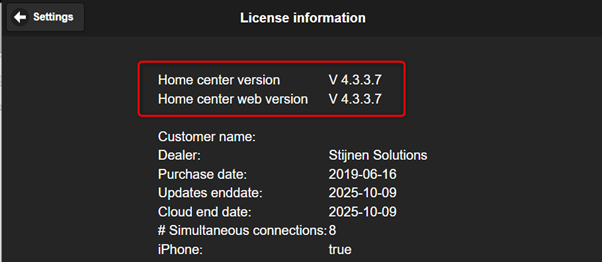
In 2023, the minimum version of Home center to run stably is 4.3.0.1
9. Check if the Home center service is active
If not, restart it:
- Go to the IP address of the module via the browser.
- This can be done via the link: http://www.homecenter.be/start Here our website will look for your module
Or: - If you have already given a fixed IP address to the device, this may no longer work. Then go back to the lesson Open the Start page
- This can be done via the link: http://www.homecenter.be/start Here our website will look for your module
- If you see the page in red letters: Warning: home center service not running
Then the internal Home center service is no longer active on the device! - To restart the Home center service:
- Log in and go to Settings
- Choose Advanced
- There you can also see the status of the home center service: not running.
Click the Restart Home center service button to restart the service:
10. Firewall
Check the firewall settings on the computer. Does it block communication with the Home center module?
11. Is the connection to bus OK?
Check this as follows:
- Logs in to the module via the browser (as described above)
- Go to Settings / Status information
For a Velbus installation, Velbus connected must state: If this is not the case (Not connected), the connection to the bus must be checked or if it is connected but you do not receive any feedback from controls: Do you have the white module? Check the bus cable: Is it connected correctly? Is it defective? (fracture, oxidation) Replace the cable and restart the module. Do you have the DIN RAIL module? Check if the bus wires are properly connected & restart the Home center service (via Settings / Advanced). Also return to the chapter Connecting and starting up for details. Also see the chapter Specific Velbus features. |
For a Luxom system, Luxom connected should say: If this is not the case (Not connected), the DS65L Luxom module may need to be restarted. Turn it off the power, wait 30 sec and switch the power supply back on. Wait a few moments, normally the connection will now be connected . If operation is now possible, but there is no feedback, restart the Home center service (via Settings / Advanced). This problem may recur in the future. We recommend contacting your Luxom home automation installer to see if a firmware update is possible for the DS65L! Still not ok? Check for a light flicker on the network port of the DS65Lde. If this is not the case, the network connection must be checked: Is the cable still ok? Is it properly plugged in on both sides? Replace the cable. Is the connection to the router ok? Open the router’s webpage to see if the module is visible in the list of connected modules. Is the configuration of IP address and Gateway correct in the DS65L? It has already happened that the connection was unstable due to incorrect configuration! Example of misconfiguration. Do you find the error? |
12. Restart home center service and try again
Do this as described in point 7.
13. Are you using the latest version of the App?
Make sure you use the most recent version from the App store / Play store. This will certainly be the case if you have just updated Home center!
Make sure you are using the correct version of Home center Windows client. If you get a message at startup that the version is different, take the steps to update it. See the chapter Basic configuration.