The Status information screen provides an overview of the current status of the Home center and all connected systems. It is mainly used for diagnostic purposes by users and installers
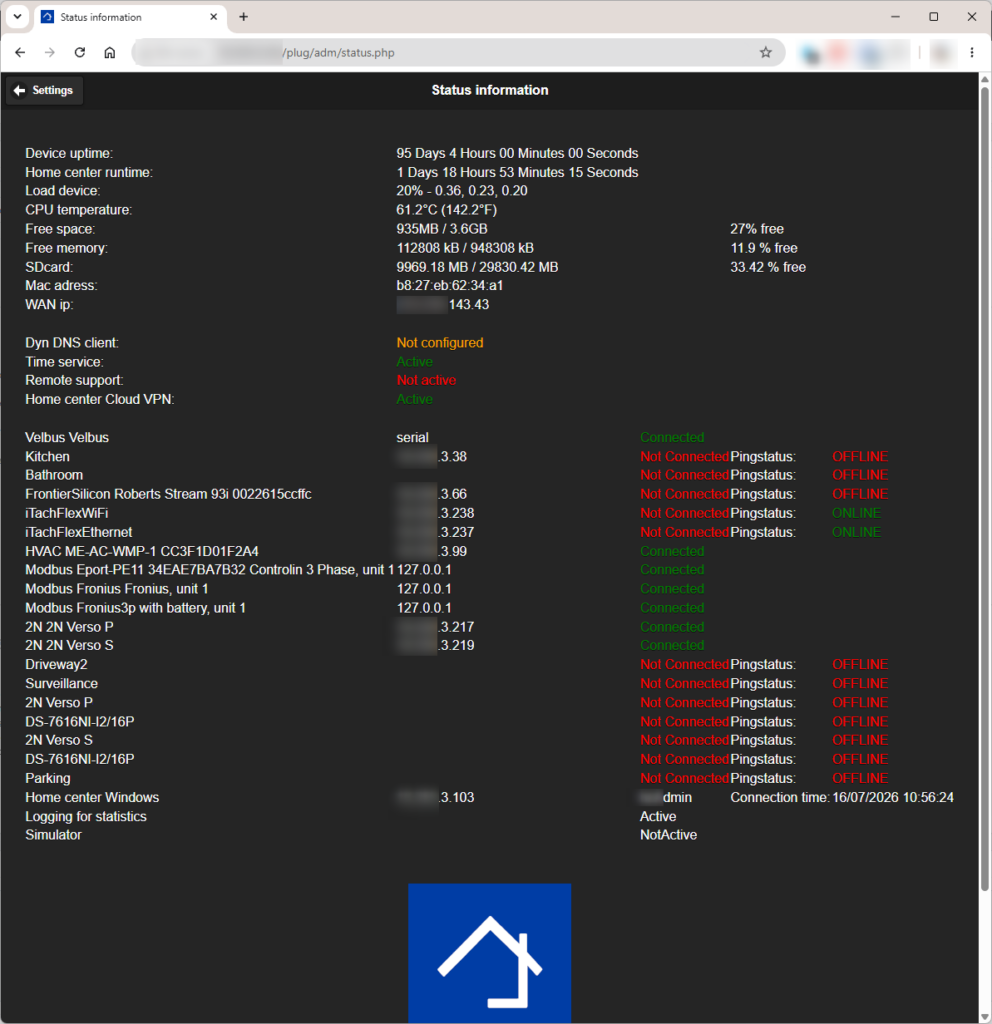
When a device or function does not operate correctly, this screen can help to identify whether the problem is related to:
- the Home center itself;
- the network connection;
- a connected device;
- the communication with the home automation system.
Home center status
The first section shows the status of the Home center hardware and software.
Device uptime
Shows the time since the Home center device was last restarted.
A high uptime value indicates that the hardware has been running continuously for a long period.
Home center runtime
Shows the time since the Home center service was last started.
This value can be different from the device uptime because the Home center service can be restarted separately without restarting the complete device.
The Home center service can be restarted via:
Settings > Advanced > Restart Home center service
Load device
Shows the current CPU load of the Home center device.
A high CPU load can indicate that the device is performing many tasks at the same time.
CPU temperature
Shows the current processor temperature.
The temperature should normally remain below 65 °C.
If the temperature is too high, additional cooling may be required for the Home center module.
Free space and free memory
Shows the available storage space and memory of the Home center device.
When available space or memory becomes too low, this can affect the operation of the Home center. Contact your installer or support if this occurs.
SD card
Shows the used and available space on the SD card.
The SD card logging and monitoring files for Monitoring and graphs. Sufficient free space is required for correct operation.
Network information
This section contains information about the network connection of the Home center.
MAC address
The MAC address is the unique network identifier of the Home center.
It can be required when configuring your router or when support needs to identify the device on the network.
WAN IP
Shows the public IP address of your internet connection.
This information confirms that the Home center can communicate with the internet and can be useful during support activities.
Dyn DNS client
Shows the status of the Dynamic DNS configuration.
Dynamic DNS can be used to access your Home center remotely through the internet when you do not use the Home center Cloud service.
Home center services
This section shows the status of additional Home center services.
Time service
For Velbus systems only, not for Luxom systems.
Shows whether the time synchronisation service is active.
Home center can regularly send the current time to the Velbus system. The frequency and configuration of this synchronisation are defined in the Home center settings.
Remote support
Shows whether temporary remote support access is active.
Normally, this status is Not active.
Remote support is only activated when requested by support. During the active support session, the status changes to Active.
Beta-test customers may see this status active permanently, depending on the test configuration.
Home center Cloud VPN
Shows the status of the secure connection with the Home center Cloud service.
When active, this connection allows secure remote access to your Home center through the Home center Cloud service.
Connected devices and services
The lower part of the screen shows all configured devices and services that communicate with the Home center.
Depending on the installation, this list can contain:
- the main home automation system (Velbus or Luxom);
- audio devices;
- network devices;
- HVAC systems;
- Modbus devices;
- access control systems;
- cameras;
- other integrated devices.
For each device, the screen can show:
- device name;
- IP address (for network devices);
- connection type;
- connection status.
Connection status
The connection status indicates whether a communication channel is currently established between the Home center and the device.
Possible statuses:
| Status | Meaning |
|---|---|
| Connected | The Home center has an active communication connection with the device. |
| Not Connected | The Home center cannot establish communication with the device. |
If a device shows Not Connected, check:
- whether the device is powered on;
- whether the device configuration is correct;
- whether the device itself needs to be restarted.
If the problem remains, restart the Home center service and contact your installer or support if required.
Ping status
For network devices, the screen can also show the Ping status.
Ping status checks whether the Home center can reach the device through the network.
Possible statuses:
| Status | Meaning |
|---|---|
| ONLINE | The device responds on the network. |
| OFFLINE | The Home center cannot reach the device through the network. |
The Ping status is independent from the connection status.
Examples:
- Connected + ONLINE
The device is reachable and the Home center communication is working correctly. - Not Connected + ONLINE
The device is available on the network, but communication with the Home center is not established. Check the device configuration or restart the device. - Not Connected + OFFLINE
The device cannot be reached on the network. Check the power supply, network cable, Wi-Fi connection, and network configuration of the device.
Statistics and simulator
Logging for statistics
Shows whether logging for Monitoring is active.
When enabled, the Home center collects information used for statistics and graphs.
Presence simulator
Shows whether the Presence simulator is active.
The presence simulator can automatically reproduce typical activity in your home to make it appear occupied when you are away.
Status screen Windows client
The Status screen provides an overview of the communication status between the Home center Windows client, the Home center module, and the connected home automation system (Velbus or Luxom).
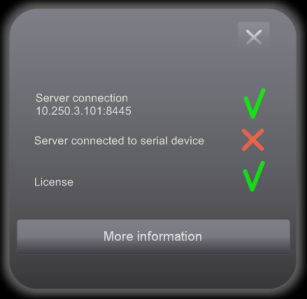
This screen is used for diagnostic purposes. It helps to identify why the home automation system cannot be operated from the Home center software.
The Status screen opens automatically when a connection problem with the home automation system is detected.
You can also open this screen manually via:
Settings > Status overview
Each component must have a green status for the Home center software to communicate correctly with the home automation system.
If one of the components shows a red status, the related communication is not working and the home automation system cannot be operated from the Home center software.
Connection to the server
This status shows the connection between the Home center Windows client and the Home center Server over the network.
A green status indicates that the client is successfully connected to the server.
A red status indicates that the client cannot communicate with the Home center Server.
Note:
When the connection to the server is unavailable, the other statuses cannot be checked correctly because all communication goes through the Home center Server.
Possible causes
- The network cable is disconnected, the WiFi connection is disconnected
- You are connected to a different WiFi
- The network connection on the client computer is unavailable.
- A firewall blocks communication between the client and server.
- The Home center Server is not running or has stopped.
Solutions
- Verify that the network connection is available or make sure you are connected to the correct WiFi.
- Check whether the firewall allows communication with the Home center Server.
- Verify that the Home center Server is running.
- Restart the Home center Server if required.
Connection to serial port
This status shows the connection between the Home center Server and the serial interface of the home automation system.
A green status indicates that the Home center Server can communicate with the home automation system through the serial interface.
A red status indicates that the communication with the serial interface cannot be established.
Possible causes
- The serial cable is disconnected from the computer or from the home automation interface.
- The serial interface version is outdated or does not support the required functionality.
- The license is invalid, expired, or not suitable for the installed Home center version.
- The license file on the Home center module is corrupted.
- Another application is using the serial interface (for example, Serial Manager).
Only one application can communicate with the serial interface at the same time.
Solutions
- Verify that the serial cable is correctly connected.
- Check that the serial interface firmware/version is up to date and supports the required functionality.
- Verify the Home center license:
- For a trial version, check whether the license has expired.
- If the license belongs to an older Home center version, install the new license file received with the update.
- If no new license file was received, contact your dealer.
- If the license file is corrupted, reinstall the original license file.
- Close any other application that may be using the serial interface.
- Restart the Home center Server if required.
License
This status shows whether the Home center license is valid.
A green status indicates that the license is valid and the Home center module is activated.
A red status indicates that there is a problem with the license or activation.
Possible causes and solutions:
The Home center module has not been activated
The Home center module is activated automatically during startup when an internet connection is available.
If the module cannot access the internet, activation cannot be completed.
Solution:
- Verify that the Home center module has internet access.
- Restart the Home center module.
The license file is corrupted
A damaged license file can prevent the Home center module from starting the required services.
Solution:
- Reboot the Home center module.
- If the problem remains, contact support.
Activation failed
If activation cannot be completed after verifying the internet connection, contact support.